Download Barrel
Get the latest release for your platform.

Linux
.deb (Ubuntu) · .rpm (Fedora) · .AppImage

Release builds are signed and verified.
Prerequisites
Required tools Barrel depends on.
Required
| Tool | Purpose | Install |
|---|---|---|
| ADB | Android Debug Bridge - device communication | See below |
| xz | XZ decompression (for Frida server download) | See below |
| curl | HTTP transfers (Frida download, proxy verify) | See below |
Optional
| Tool | Purpose | Install |
|---|---|---|
| scrcpy | Real-time screen mirroring | See below |
| frida-tools | Frida server management & dynamic instrumentation | pip install frida-tools (verify frida --version works after install) |
Runtime Dependencies
Barrel is compiled against the following system libraries. Ensure these are installed (usually present on modern desktops). For development builds from source, install the -dev variants instead:
| Library | Minimum Version | Runtime Install (Debian/Ubuntu) | Dev Build Install |
|---|---|---|---|
| libwebkit2gtk-4.1 | 2.40+ | sudo apt install libwebkit2gtk-4.1-0 | sudo apt install libwebkit2gtk-4.1-dev |
| libgtk-3 | 3.24+ | sudo apt install libgtk-3-0 | sudo apt install libgtk-3-dev |
| libsoup-3.0 | 3.0+ | sudo apt install libsoup-3.0-0 | sudo apt install libsoup-3.0-dev |
| libjavascriptcoregtk-4.1 | 2.40+ | sudo apt install libjavascriptcoregtk-4.1-0 | sudo apt install libwebkit2gtk-4.1-dev |
Platform-Specific Install
Select your operating system for detailed install commands:
# Android Debug Bridge
sudo apt install adb

# xz-utils (usually pre-installed)
sudo apt install xz-utils

# curl (usually pre-installed)
sudo apt install curl

# Optional: scrcpy for screen mirroring
sudo apt install scrcpy

# Optional: frida-tools for Frida integration
pip3 install frida-tools
# Install via Homebrew
brew install android-platform-tools
brew install xz
brew install curl
# Optional: scrcpy for screen mirroring
brew install scrcpy
# Optional: frida-tools for Frida integration
pip3 install frida-tools# Android Debug Bridge
# Download from: https://developer.android.com/tools/releases/platform-tools
# Add the extracted folder to your system PATH.
# xz and curl are bundled with Barrel on Windows.
# Optional: scrcpy for screen mirroring
scoop install scrcpy
# Optional: frida-tools for Frida integration
pip install frida-toolsadb devices.
You should see your device listed. If it shows as "unauthorized", accept the RSA prompt on your phone.
adb, curl, xz, scrcpy, and frida from your system PATH. Installing these tools system-wide (e.g. apt install, brew install, or pip3 install --user) ensures Barrel finds them immediately. These tools are standalone and won't interfere with Python projects or system packages - no virtual environment needed.
Installation
How to install Barrel on your platform.
Debian / Ubuntu (.deb)
sudo dpkg -i Barrel_0.3.0_amd64.debThen launch from your app menu or run barrel in terminal.
Fedora / RHEL (.rpm)
sudo rpm -i Barrel_0.3.0_1.x86_64.rpmThen launch from your app menu or run barrel in terminal.
Portable (.AppImage)
chmod +x Barrel_0.3.0_amd64.AppImage
./Barrel_0.3.0_amd64.AppImage
No install needed - runs directly. Move it anywhere you like.
macOS (.dmg) Experimental
- Open the downloaded
.dmgfile - Drag Barrel.app into your Applications folder
- Launch from Applications or Spotlight (Cmd+Space)
- Right-click Barrel.app in Applications and select Open (then click Open in the dialog). This only needs to be done once.
- Or run this in Terminal to remove the quarantine attribute:
xattr -d com.apple.quarantine /Applications/Barrel.app
Windows (.msi) Experimental
- Double-click the
.msiinstaller file - Follow the installer prompts
- Launch Barrel from the Start Menu
Quick Start
Get up and running in minutes.
adb is on your system PATH.
See the prerequisites section for platform-specific instructions.
adb pair on the device, then enter the IP:Port and pairing code in Barrel.
Dashboard
The home screen and device hub.
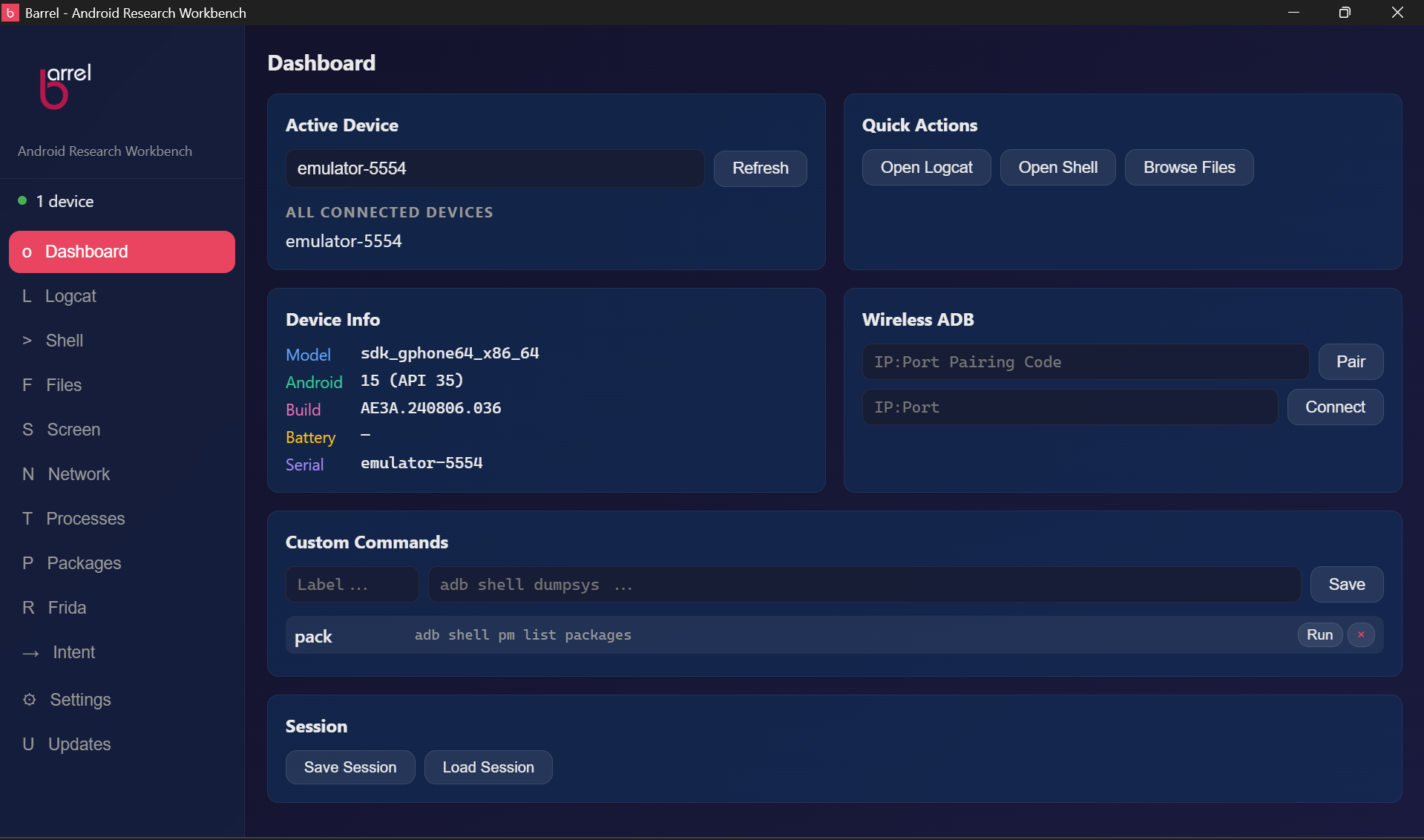
The Dashboard is your starting point. It shows all connected devices, provides quick-access shortcuts to each tool, and displays device properties.
Device Management
- Active Device dropdown - Select which connected device to target. All tools inherit this selection by default.
- Refresh button - Re-scans for connected devices.
- Device indicator - Green dot when connected, gray when no device detected.
Per-Module Device Selection
Each tool tab has its own compact device dropdown in the toolbar. By default it shows "Default device" (the globally selected device). You can override it per-tool to target different devices independently - browse files on device A while monitoring logcat on device B.
Device Info
The Device Info card shows: model name, Android version + API level, build ID, battery percentage + status, and serial number. Auto-updates when the device changes.
Custom Commands
Create reusable ADB command shortcuts that persist across sessions. Type a label and command, click Save (or press Enter twice), then Run any time. Output appears inline. Commands are saved to localStorage.
Session Save/Load
Save your entire workspace layout - all shell tab names, logcat configurations (filter, level, package), and per-module device overrides. Load to restore everything at once.
Wireless ADB
Connect devices over the network without USB.
- On your device: Settings → Developer Options → Wireless Debugging → enable it
- Tap "Pair device with pairing code" - you get an IP:Port and a 6-digit code
- In Barrel's Dashboard, find the Wireless ADB card
- Pair: Enter
IP:Port code(e.g.192.168.1.100:41241 123456) and click Pair - Connect: Enter the IP:Port shown under Wireless Debugging (different port, e.g.
192.168.1.100:39251) and click Connect
The device appears in the Dashboard dropdown and is ready to use with all tools.
Shell
Interactive PTY-based terminal with multi-tab support.
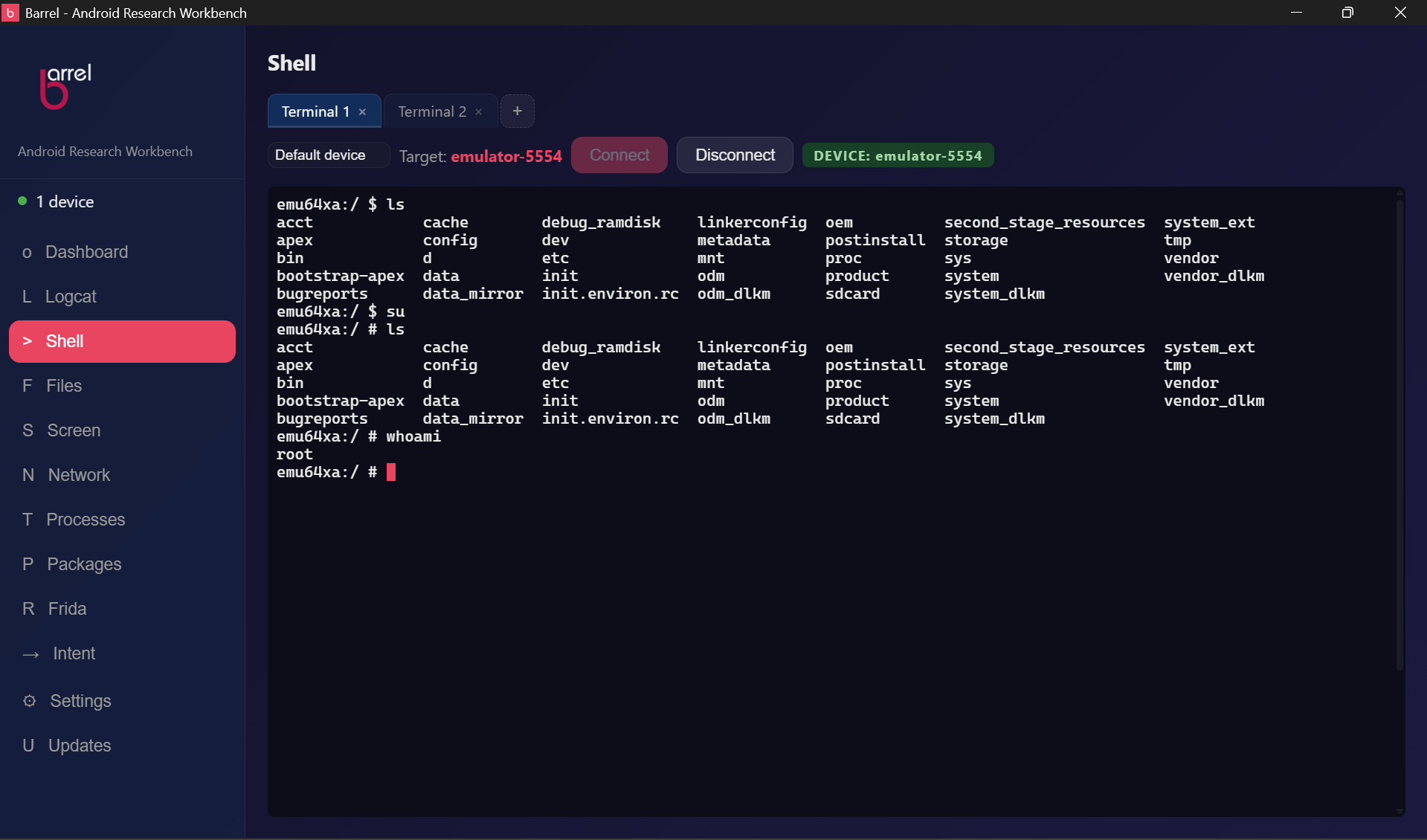
Each tab runs an independent shell session - local bash on the host machine, or adb shell on a connected device. Terminal output is rendered via xterm.js with a custom dark theme.
Getting Started
- A "Terminal 1" tab opens automatically with a local bash session.
- Type commands directly - behaves like a native terminal emulator.
- Copy/paste with
Ctrl+C/Ctrl+V(smart: copies selected text, or sends SIGINT if nothing selected).
Device Shell
- Select a device on the Dashboard.
- Click Connect in the Shell toolbar.
- The terminal switches from local bash to an
adb shellsession. - The toolbar indicator changes from
LOCALtoDEVICE: <serial>. - Click Disconnect to return to the local shell.
Multi-Tab Management
| Action | How |
|---|---|
| New tab | Click the + button in the tab bar |
| Switch tab | Click any tab |
| Close tab | Click the × on a tab (disabled when only one tab remains) |
| Reorder tabs | Drag a tab and drop it on another tab's position |
| Rename tab | Double-click the tab label and type a custom name |
Copy & Paste
| Shortcut | Action |
|---|---|
Ctrl + C | Copy selection, or SIGINT if no selection |
Ctrl + Shift + C | Copy selection from the terminal |
Ctrl + V | Paste text into the terminal |
Ctrl + Shift + V | Paste text into the terminal |
Logcat
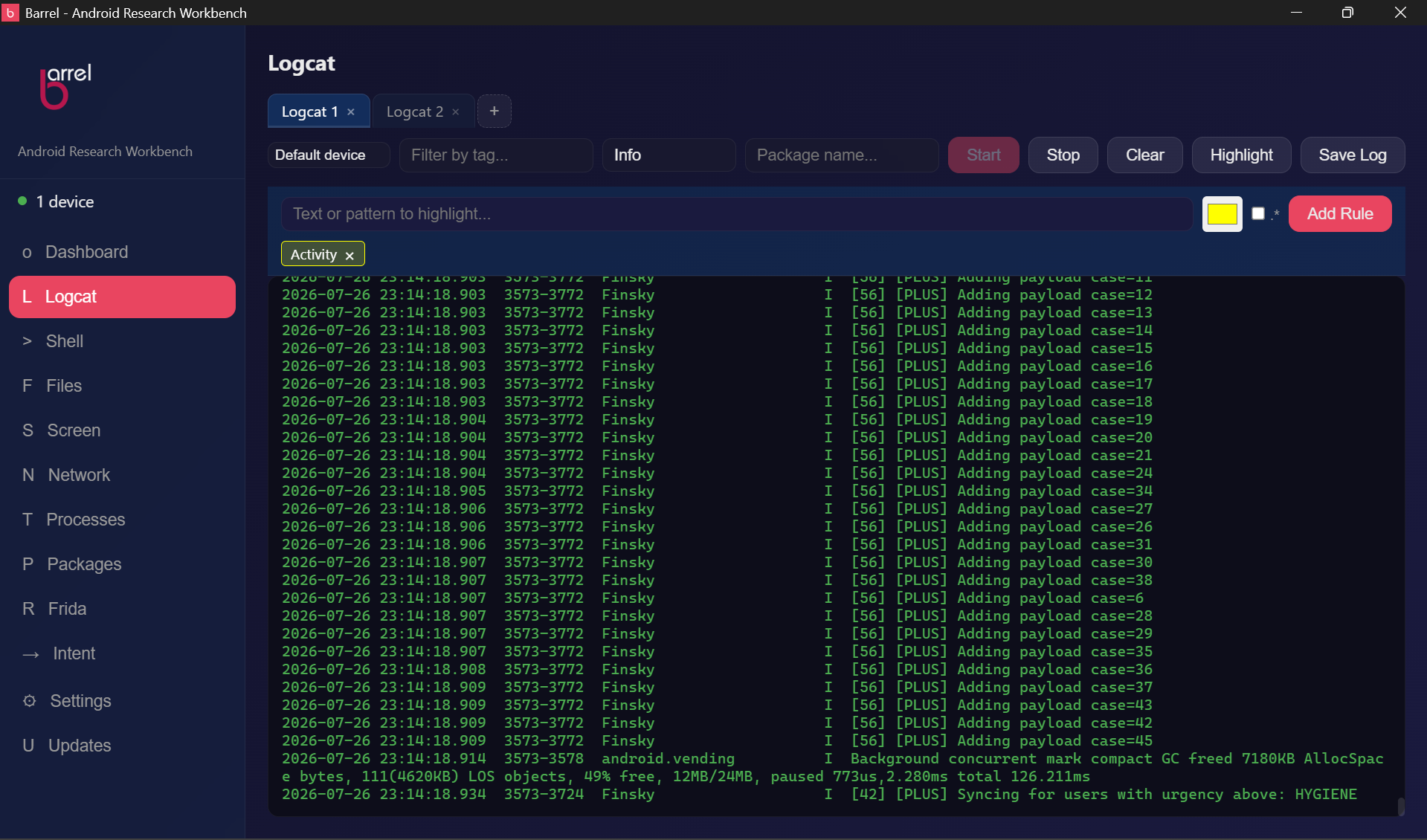
Real-time Android device log streaming with multi-tab support.
Each tab maintains its own filter, log level, and output buffer (capped at 1000 lines).
Getting Started
- Select a device on the Dashboard.
- Navigate to the Logcat tab.
- Click Start to begin streaming logs.
- Logs appear in real-time in the output pane.
Controls
| Control | Action |
|---|---|
| Filter | Text field to filter logs by tag (e.g., ActivityManager) - passed to adb logcat -s |
| Level | Dropdown for minimum log level (Verbose through Fatal) |
| Package | Filter by Android package name - resolves to PID and passes --pid to adb logcat |
| Start / Stop | Begin or pause the log stream |
| Clear | Clear the current tab's output buffer |
| Save Log | Export the current tab's buffer to a .txt or .log file |
| Highlight | Open the highlight rules panel. Add text/color/regex rules - matching lines get a semi-transparent background highlight. Rules are per-tab and persist across restarts. |
Per-Tab Device Selection
Each logcat tab has its own device dropdown in the toolbar. By default it follows the Dashboard's active device, but you can target different devices per tab - monitor logs on device A while another tab watches device B.
Log Level Hierarchy
Levels are cumulative - selecting a level shows that level and everything above it in severity:
| Selection | Shows | Colors |
|---|---|---|
| Verbose | V + D + I + W + E + F | gray, blue, green, yellow, red, bright red |
| Debug | D + I + W + E + F | blue, green, yellow, red, bright red |
| Info | I + W + E + F | green, yellow, red, bright red |
| Warning | W + E + F | yellow, red, bright red |
| Error | E + F | red, bright red |
| Fatal | F only | bright red |
Color-Coded Output
| Level | Color |
|---|---|
| V (Verbose) | Dim gray |
| D (Debug) | Blue |
| I (Info) | Green |
| W (Warning) | Yellow |
| E (Error) | Red |
| F (Fatal) | Bright red |
File Explorer
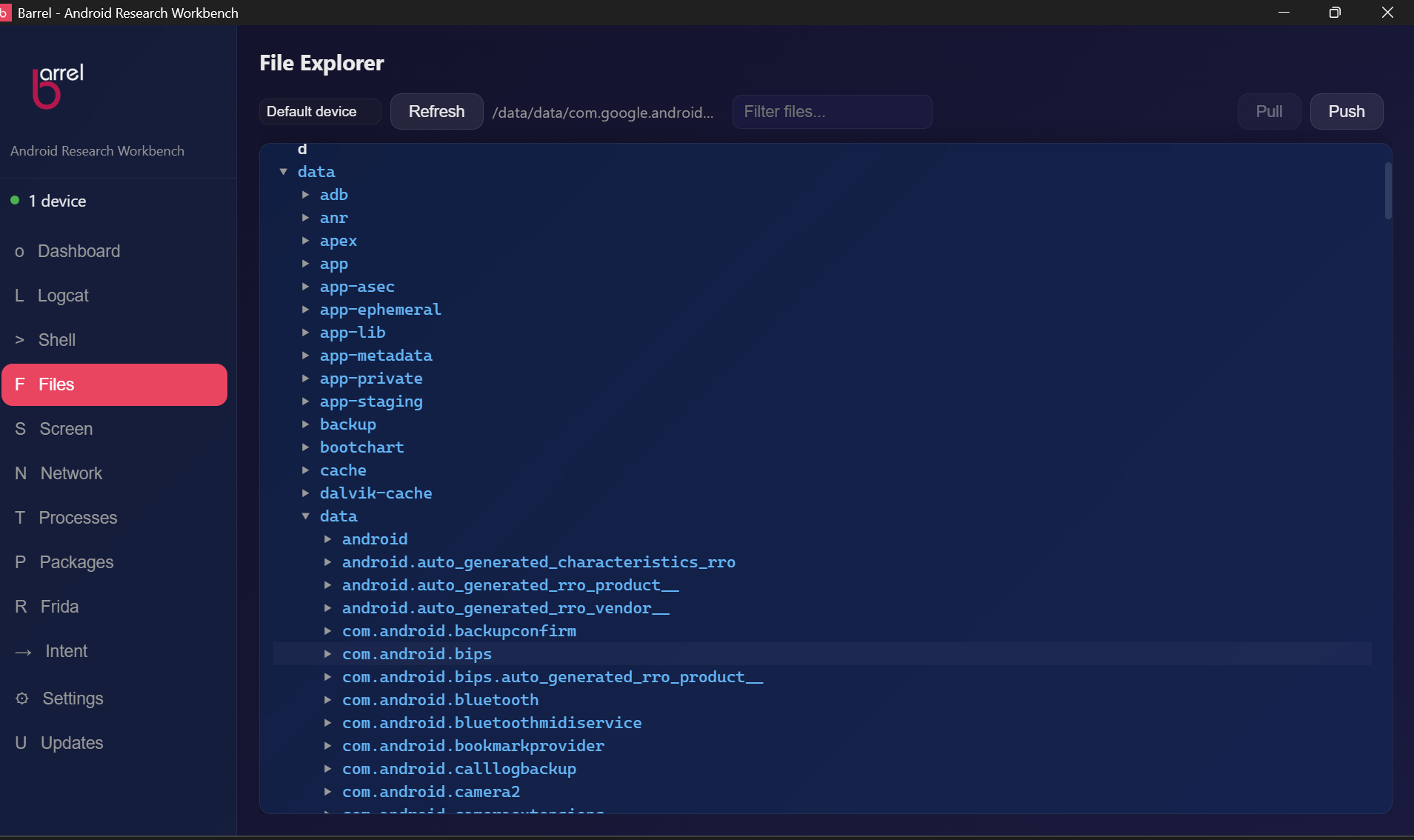
Browse the Android device filesystem.
A collapsible tree view with support for su fallback on protected directories, plus file pull/push with native OS dialogs.
Getting Started
- Select a device and navigate to the Files tab.
- Click Refresh to load the root directory (
/). - Click any directory to expand it (lazy-loaded on demand).
Usage
- Expand/collapse - click the arrow (▶/▼) next to a directory.
- Set active directory - click a directory name (the path appears in the toolbar).
- Select file - click a file name (highlighted row).
- Directories in blue, files in white.
- Symlinks to directories (e.g.,
/sdcard) detected as expandable. - Protected directories auto-attempt
su -candsu 0fallbacks.
File Viewer
Double-click any file or hover and click View to open a syntax-highlighted preview modal. Supports JSON, XML, HTML, CSS, JS/TS, YAML, and shell scripts. Close with Escape, click outside, or the X button.
File Transfers
Pull (device → host): Click a file to select it, then click Pull. A Save As dialog appears.
Push (host → device): Navigate to the target directory, click Push, select a file. The tree refreshes automatically.
Network Inspector
Active TCP and UDP connections with proxy management.
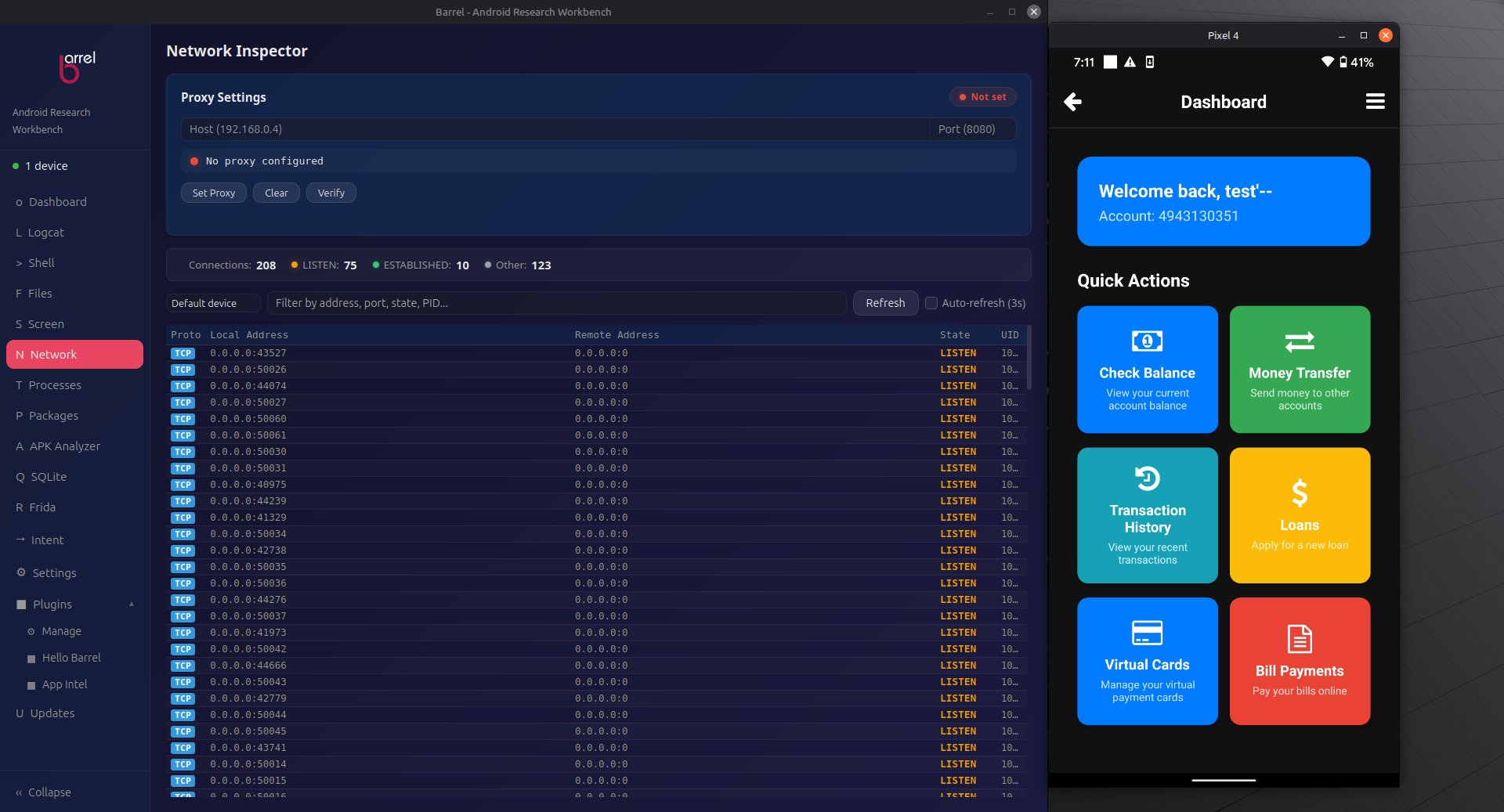
Lists all connections from /proc/net/{tcp,udp,tcp6,udp6} with color-coded states, protocol badges, and a summary bar.
Getting Started
- Select a device and navigate to the Network tab.
- Click Refresh to fetch connections.
- Use the filter field to narrow by address, port, state, protocol, or UID.
- Toggle Auto-refresh (3s) for live monitoring.
Color Legend
| State | Color |
|---|---|
| ESTABLISHED | Green |
| LISTEN / FIN states | Yellow/Orange |
| CLOSE_WAIT, CLOSING, LAST_ACK | Red |
| SYN_SENT, SYN_RECV | Blue |
| TIME_WAIT, CLOSE | Gray |
| TCP / TCP6 | Blue protocol badge |
| UDP / UDP6 | Purple protocol badge |
Proxy Settings
Configure and test an HTTP proxy on the connected device:
- Set Proxy - enter a host IP and port, runs
settings put global http_proxy. - Clear - removes proxy via
settings put global http_proxy :0. - Verify - sends a request through the proxy from the device using
curl -x. Returns the HTTP status code.
Process Explorer
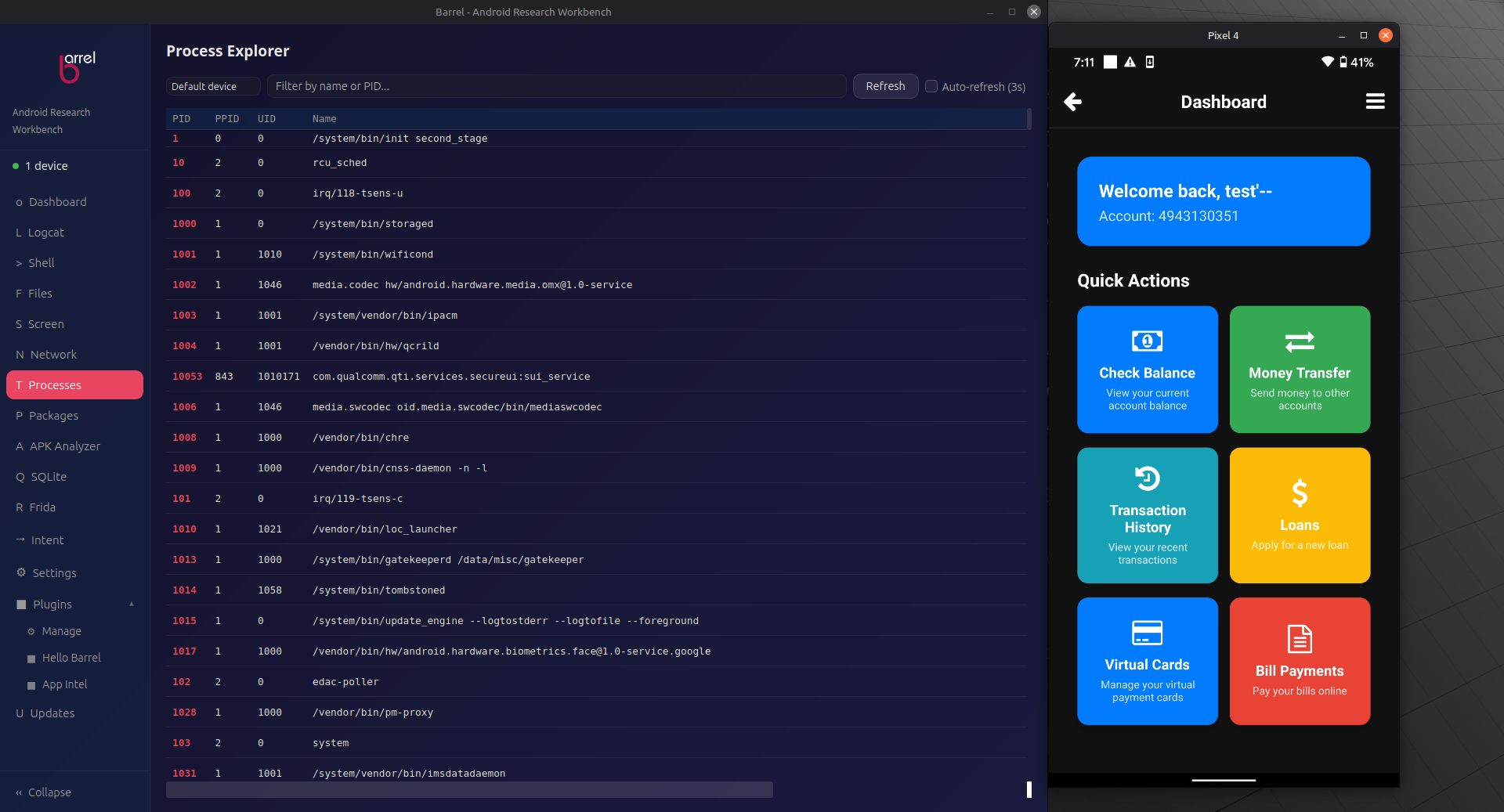
Live process list with filtering and kill capability.
Getting Started
- Select a device and navigate to the Processes tab.
- Click Refresh to fetch the current process list.
- Use the filter field to narrow by name, PID, or UID.
- Toggle Auto-refresh (3s) for live monitoring.
Killing a Process
Click Kill next to any process (PID > 1) to terminate it. A glass confirmation dialog appears. Terminating critical system processes may destabilize the device.
Columns
| Column | Description |
|---|---|
| PID | Process ID |
| PPID | Parent Process ID |
| UID | User ID (numeric Android app ID) |
| Name | Full command line or process name |
Package Manager
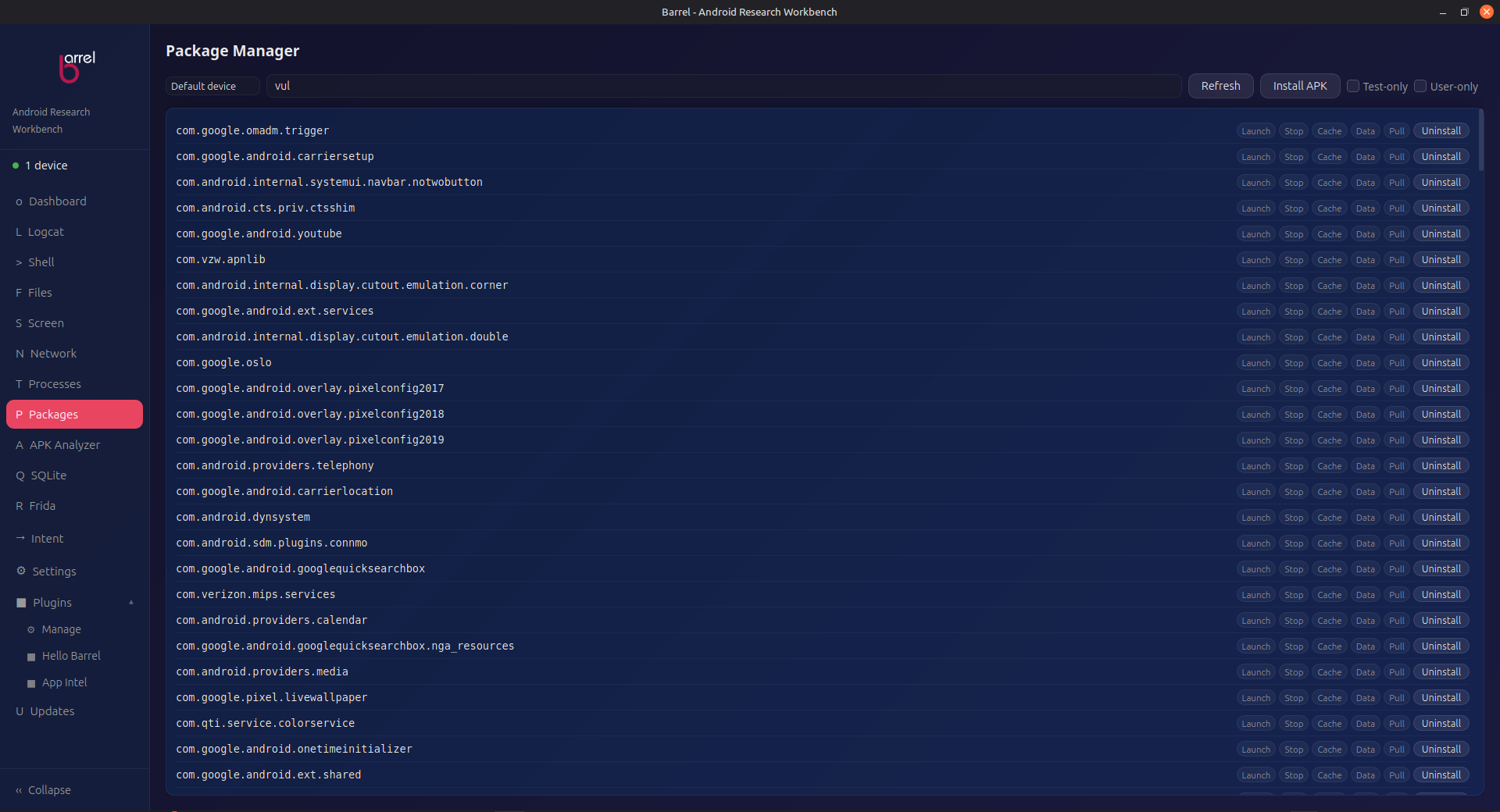
List, filter, install, and uninstall Android packages.
Getting Started
- Select a device and navigate to the Packages tab.
- Click Refresh to load the full package list.
- Type in the Filter field to search by package name in real-time.
Install APK
Click Install APK, select an .apk via the native file dialog. Installs with -r (replace if exists). The list refreshes automatically on success.
Test-only APKs
Some APKs (often analysis, debug, or internal test builds) are marked android:testOnly="true" and are rejected by a normal install with INSTALL_FAILED_TEST_ONLY. Tick the Test-only checkbox before clicking Install APK to install these with adb install -r -t <apk>. For ordinary apps, leave it unchecked.
Note: this only handles test-only APKs. An APK signed with only the legacy v1 signature scheme on Android 11+ will still fail with INSTALL_PARSE_FAILED_NO_CERTIFICATES — re-sign it with apksigner (v2/v3) before installing.
Per-Package Actions
Every package row has quick actions for testing an installed app without leaving the app:
| Action | Under the hood | Purpose |
|---|---|---|
| Launch | monkey -p <pkg> 1 | Start the app's default launcher activity. |
| Stop | am force-stop <pkg> | Kill the app and all its background processes. |
| Cache | su rm -rf /data/data/<pkg>/cache/* | Clear the app's cache directory only. |
| Data | pm clear <pkg> | Wipe app data and state (with confirmation dialog). |
| Uninstall | adb uninstall <pkg> | Remove the app (with confirmation dialog). |
Uninstall
Click Uninstall next to any package. A glass confirmation dialog shows the package name. Click Yes, Uninstall to proceed. The list refreshes automatically.
If the standard uninstall is rejected (DELETE_FAILED_INTERNAL_ERROR - common for device-admin packages on newer Android, or when using an older adb client), Barrel automatically retries with adb shell pm uninstall --user 0 <pkg>, which works regardless of the host adb version.
Screen Capture
Screenshots, recording, and real-time mirroring.
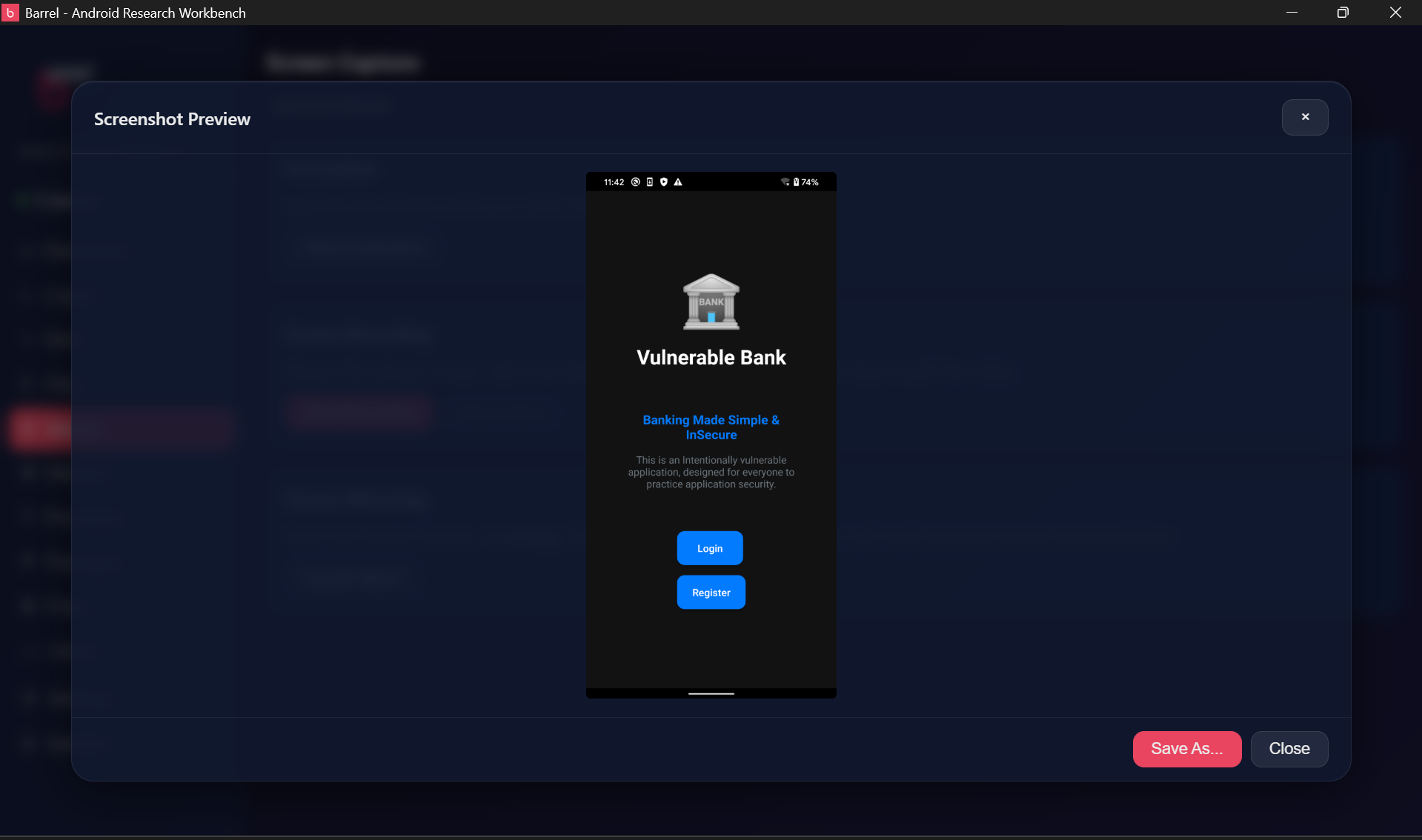
Screenshot
Click Take Screenshot. A preview modal opens with the device screen. Save overwrites the previous file, Save As opens a file dialog to pick a location. Captured via adb exec-out screencap -p | base64 and rendered inline.
Screen Recording
- Click Start Recording - runs
adb shell screenrecord. - Interact with the device normally.
- Click Stop & Save - the MP4 is pulled from the device and a Save As dialog appears.
Screen Mirroring (scrcpy)
Click Launch Mirror to stream the device display in real-time via scrcpy. Requires scrcpy to be installed on your system.
Linux:
sudo apt install scrcpymacOS:
brew install scrcpyWindows:
scoop install scrcpy
Frida
Server setup, live tracing, and a ready-to-run script library.
Prerequisites
frida-toolson your PC -pip install frida-tools(if using pipx, verifyfrida --versionworks; the pipx entry point may need a manual fix)curlandxzavailable on your system
1. Server Setup
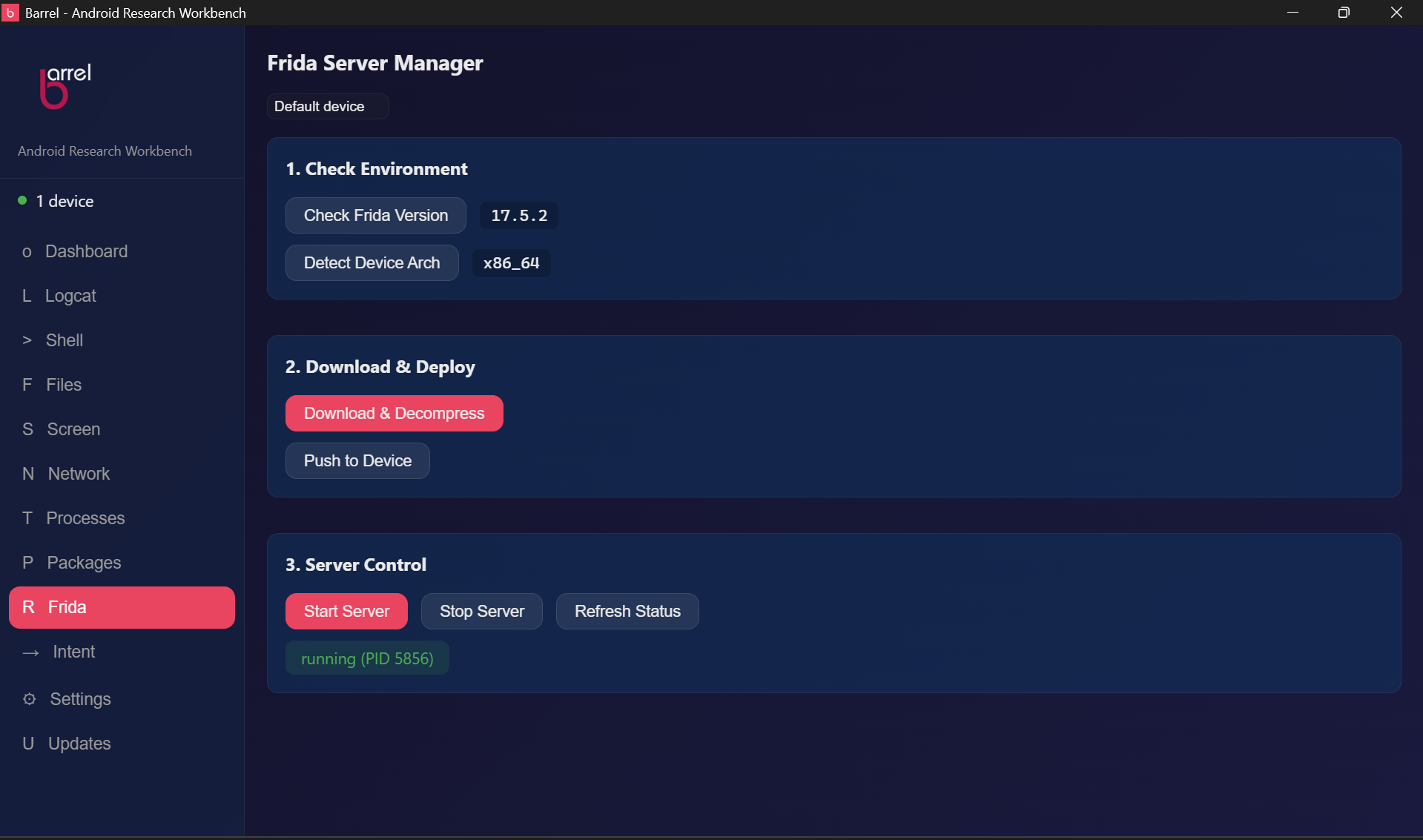
Check Environment - click Check Frida Version to verify frida is installed, then Detect Device Arch to read the device CPU architecture. Both values are needed to download the correct frida-server binary.
Download & Deploy - Download & Decompress pulls the matching frida-server from GitHub Releases, then Push to Device uploads it to /data/local/tmp/frida-server and sets permissions.
Server Control - Start Server launches frida-server in the background (tries su -c first), Stop Server kills it by PID, and Refresh Status polls pidof frida-server.
2. Frida Trace
Run frida-trace as a live streaming session from the Frida tab. Great for a first pass at "what does this app call, and when?"
- Target mode - Spawn launches the app under instrumentation (works for cold starts), Attach by package hooks an already-running app (match the full package identifier, e.g.
com.example.app), and Attach by PID hooks a specific process. - Function filters - include/exclude by function name with glob support (e.g.
*strdup*). - Module filters - restrict to modules like
libc.so,libart.so. - Live output streams into an auto-following panel with Start/Stop/Clear and Export Log via native save dialog.
- Sessions stop automatically when the device disconnects.
3. Script Library
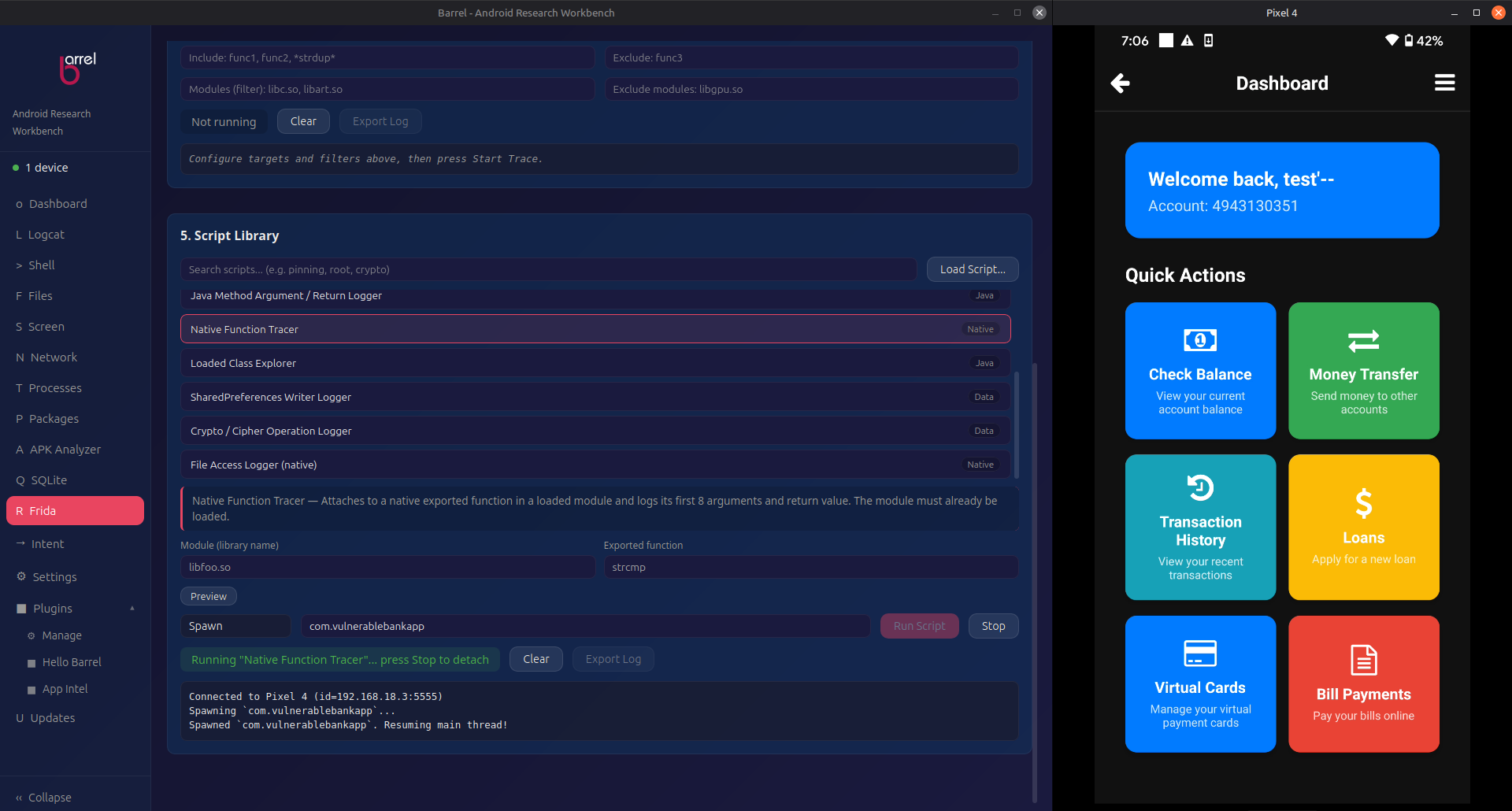
Pick a ready-to-run Frida script (searchable by name or tag), choose a target, and stream its output live - no command-line typing required. Select from Spawn, Attach by package, or Attach by PID, then hit Run Script. Start/Stop/Clear and Export Log work exactly like Frida Trace.
| Script | Category | What it does |
|---|---|---|
| Universal SSL Pinning Bypass | SSL | Bypasses common certificate-pinning implementations: conscrypt trust-manager checks, OkHttp CertificatePinner, and hostname verification. |
| Anti-Root / Anti-Emulator Bypass | Evasion | Hides su/Magisk paths, spoofs Build props, and defeats RootBeer-style detection. |
| Java Method Logger | Dynamic | Hooks every overload of a user-chosen class+method and logs arguments and return values. |
| Native Function Tracer | Dynamic | Intercepts a native module export to trace calls into C/C++ code. |
| Loaded-Class Explorer | Introspection | Enumerates loaded classes matching a substring - spot app internals fast. |
| SharedPreferences Logger | Data | Logs writes to SharedPreferences files so you can watch persisted state change. |
| Cipher / Crypto Logger | Data | Logs cipher init/update/doFinal with hex output, optionally revealing plaintext. |
| Native File-Access Logger | Data | Traces open/openat/fopen/stat/access calls under /data, /sdcard, and /storage. |
Custom Scripts
Use Load Script... to import your own .js Frida script from disk - useful for targets the built-ins don't cover (e.g. fintech apps). Loaded scripts appear under a Custom tag and are searchable alongside the built-ins, persist across restarts, and can be removed without touching the file on disk.
Preview: every script that ships with Barrel - built-in library scripts and your own custom-loaded scripts - is fully previewable via the Preview button.
Intent Sender
Craft and fire Android intents via ADB for security testing.
Intents are Android's inter-component messaging system. The Intent Sender lets you construct and send arbitrary intents to a connected device - useful for testing exported components, deep link handling, and broadcast receivers. Every field maps 1:1 to an adb shell am flag, so the Raw command panel always shows the exact command being sent.
Fields
| Field | Flag | Purpose |
|---|---|---|
| Action | -a | The intent action (e.g. android.intent.action.VIEW, android.intent.action.SEND). Preset dropdown covers common values. |
| Data URI | -d | A content URI, URL, or phone number the intent acts on (e.g. content://contacts/people/1). |
| MIME Type | -t | MIME hint for the data format (e.g. text/plain, image/png). |
| Package / Class | -n | Explicit target component (<pkg>/<class>). Leave both empty for implicit routing. |
| Flags | -f | Routing behavior. Each checked flag is emitted as its own -f argument; am ORs them together. |
| Extras | --es --ei --ez --ef --el | Key-value payloads. Add as many as needed, each with its own type. |
Flags
Flags control how the intent is delivered. The checkboxes map to the following bit values:
| Flag | Value | Effect |
|---|---|---|
NEW_TASK | 0x10000000 | Start the activity in a new task. Required when launching an activity from a non-activity context (which is exactly what adb does). |
CLEAR_TOP | 0x00004000 | If the target is already running, bring it forward and deliver the new intent to the existing instance instead of stacking a duplicate. |
EXCLUDE_STOPPED | 0x00080000 | Only match components in started apps; stopped apps are excluded from resolution. |
INCLUDE_STOPPED | 0x00020000 | Also match components in stopped apps - useful for waking a dormant app with a broadcast. |
SINGLE_TOP | 0x02000000 | If the target is already at the top of its task, deliver onNewIntent rather than creating a new instance. |
FORWARD_RESULT | 0x00000004 | Forward the current activity's pending result to the newly started activity (result chaining). |
Extras
Extras carry data into the component. Pick the type that matches what the target reads:
| Type | Flag | Example |
|---|---|---|
| String | --es | name → api |
| Int | --ei | count → 42 |
| Boolean | --ez | check_pin → false |
| Float | --ef | ratio → 3.14 |
| Long | --el | big → 999 |
Mismatched types (e.g. sending a String when the component reads a Boolean) are silently ignored or throw a ClassCastException on the target - matching the correct type is key.
Modes
| Mode | am subcommand | Use case |
|---|---|---|
| Start Activity | am start | Open a UI screen. Tests exported activities and deep links. |
| Start Service | am startservice | Start a background service. Tests services with weak or missing permission checks. |
| Send Broadcast | am broadcast | Fire a global or targeted broadcast. Tests receiver input validation. |
| Foreground Service | am start-foreground-service | Start a persistent service with a notification (Android 8+ requirement). |
Implicit vs Explicit
Explicit - fill in Package/Class to target exactly one component (-n <pkg>/<class>). This is what you use to probe a specific exported activity, service, or receiver. If the component is not exported, Android rejects the intent.
Implicit - leave Package/Class empty and let Android resolve the intent through intent filters using Action + Data + MIME. This is how deep links and share sheets work, and it is the correct way to test URL-scheme handling.
Worked Example - Credential Leak via an Extra
Launch the exported APICreds2Activity in DIVA (an intentionally vulnerable app) and pass a Boolean extra that bypasses its PIN gate:
- Mode: Start Activity
- Package:
jakhar.aseem.divaClass:.APICreds2Activity - Flags: leave
NEW_TASKchecked (default) - + Add Extra - key
check_pin, typeBoolean, valuefalse - Click Start Activity
adb shell am start -n jakhar.aseem.diva/.APICreds2Activity -f 0x10000000 --ez check_pin falseThe activity reads check_pin and skips its PIN check, revealing hardcoded API credentials on the device screen. If the target is already open, force-stop it first (Packages tab) - this component only reads the extra in onCreate.
SecurityException: Permission Denial ... not exported in the output panel - that is Android enforcing the manifest, not an error in Barrel.
SQLite Browser
Browse app databases, run raw SQL queries, and export results.
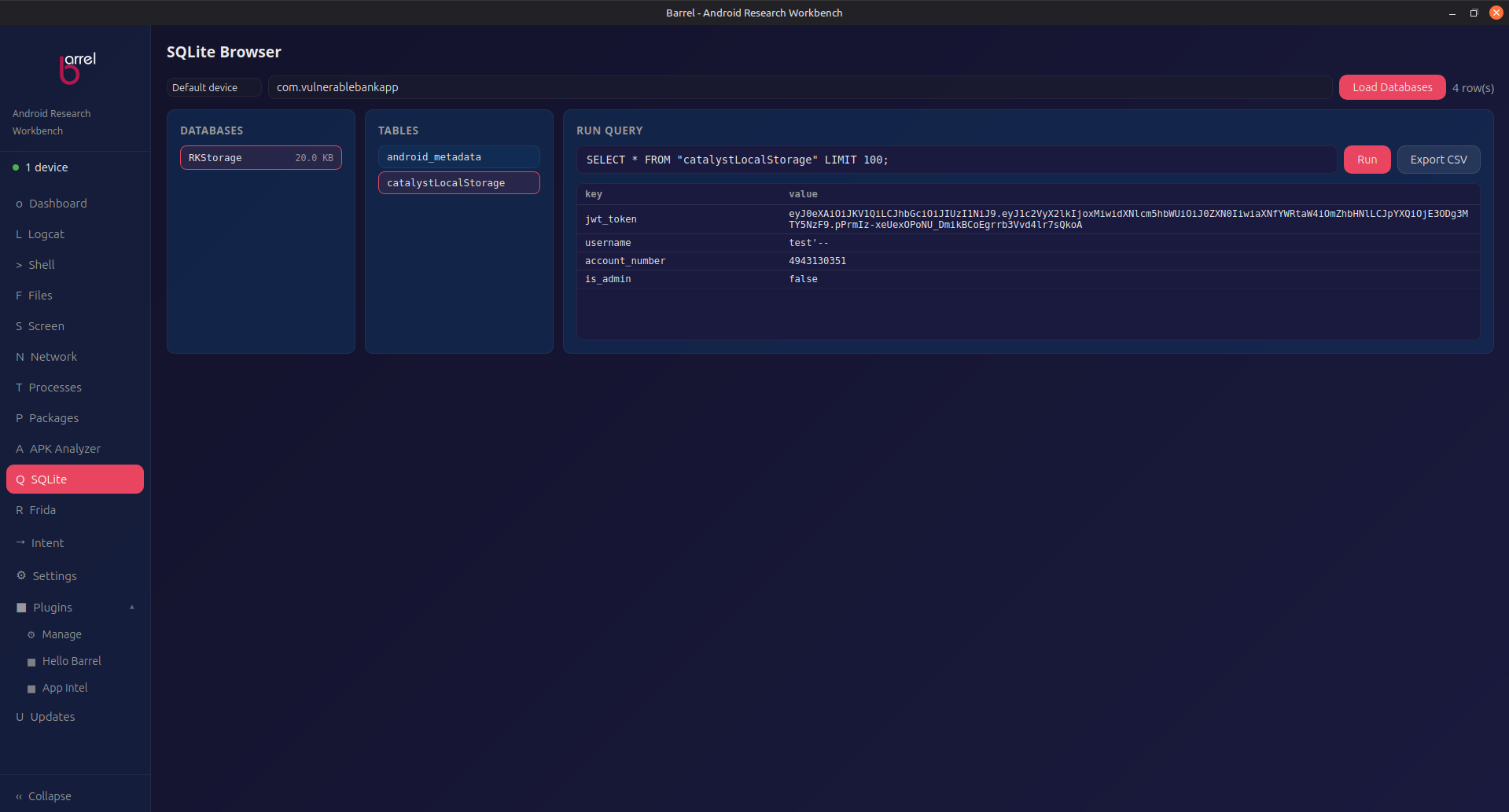
Open any SQLite database from a connected device and explore its contents without leaving Barrel. Browse tables, inspect schemas, run arbitrary SQL, and export results to CSV. Pull databases directly from the device or open local .db files.
Getting Started
- Navigate to the SQLite tab in the sidebar.
- Click Open Database and select a local
.dbfile, or right-click a database file in the File Explorer and choose Open in SQLite Browser. - The left panel lists all tables. Click a table to preview its rows.
- Type a SQL query in the editor and click Run Query to execute.
- Click Export CSV to save the current result set.
Features
- Table preview - click any table to see its rows with column headers.
- Schema inspector - view column names, types, and constraints for each table.
- Raw SQL - run any SELECT, INSERT, UPDATE, or DELETE query.
- Export to CSV - save query results via native file dialog.
- Right-click integration - open databases directly from the File Explorer context menu.
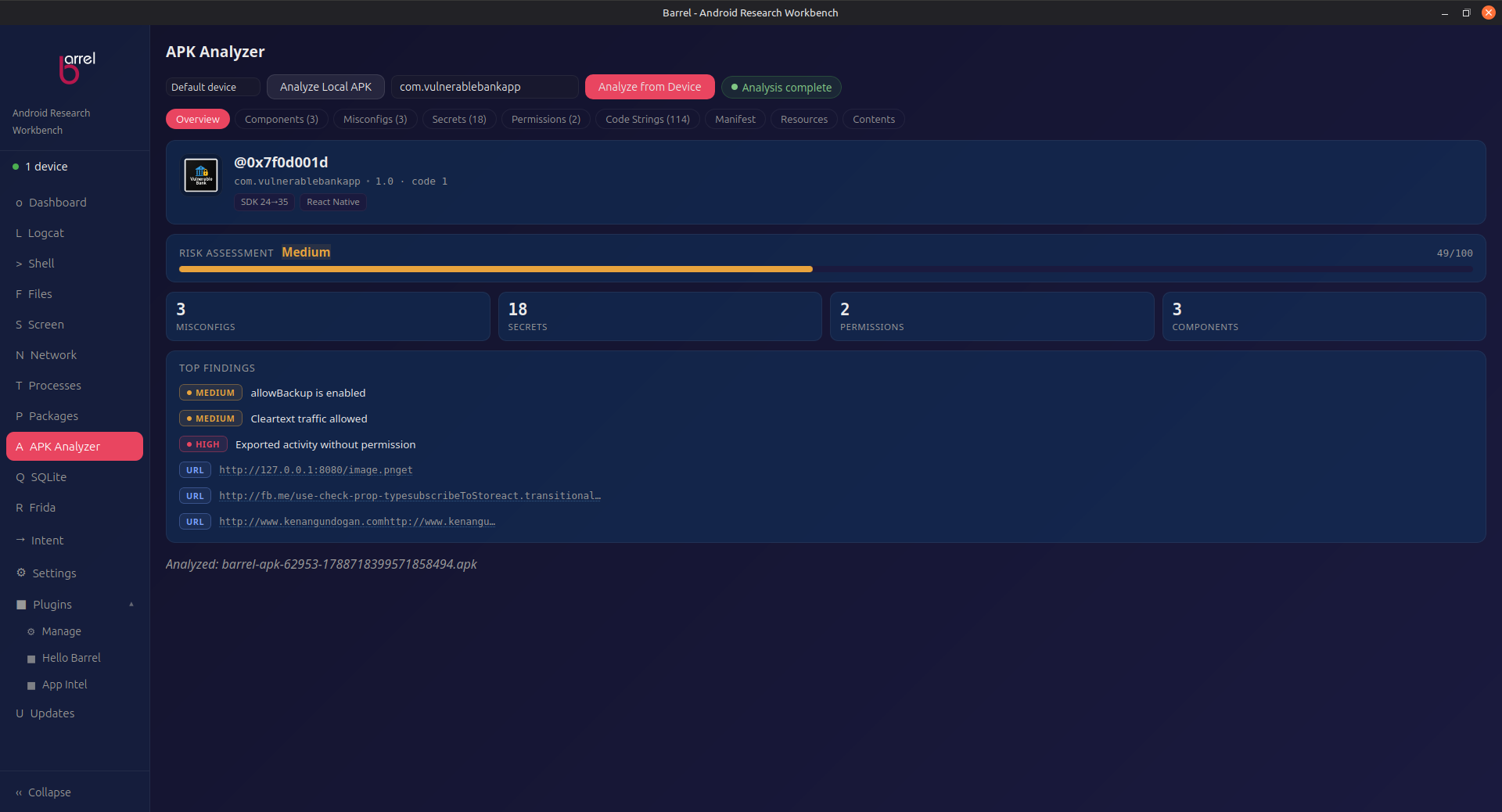
APK Analyzer
Full static analysis of Android APKs - identity, permissions, secrets, and more.
Analyze any APK file or installed package directly from Barrel. Get a complete picture of an app without running it: package identity, permissions, tech stack, security risks, hidden secrets, and DEX string extraction. All analysis runs locally - nothing leaves your machine.
Getting Started
- Navigate to the APK Analyzer tab in the sidebar.
- Click Analyze File to pick a local
.apkvia native file dialog, or select a connected device and choose an installed package from the dropdown. - Click Analyze to run the analysis.
- Browse the results across multiple tabs: Overview, Permissions, Secrets, Manifest, Resources, and Code Strings.
Analysis Tabs
| Tab | Contents |
|---|---|
| Overview | Package name, version, min/target SDK, app label, content breakdown (APK size, DEX, resources, native libs). |
| Permissions | Declared permissions with danger level classification. |
| Secrets | apkleaks-style scan: API keys, tokens, private keys, Firebase URLs, and other embedded secrets across all files. |
| Misconfigs | Manifest misconfigurations: exported components without permissions, debuggable flag, cleartext traffic, backup allowed. |
| Manifest | Full decoded AndroidManifest.xml with package info, components, and intent filters. |
| Resources | Extracted string table from resources.arsc. |
| Code Strings | jadx-like DEX string extraction - URLs, endpoints, class names, and constants from compiled bytecode. |
Settings
Configure tool paths, appearance, and behavior.
Appearance
- Dark Mode - toggle between light and dark themes. Persisted across restarts.
- Font Size - slider (10–22px) with preset buttons (Small–XX-Large). Scales the entire interface via the
--app-font-sizeCSS variable.
Tool Paths (Optional)
If auto-detection fails to find a prerequisite tool, you can set its path manually. Barrel normally finds tools via PATH, common install directories (/opt/homebrew/bin, /usr/local/bin, platform-tools), and WSL interop paths. Override only when needed.
- ADB - Android Debug Bridge executable.
- Frida - Frida CLI executable (
frida). - scrcpy - Screen mirroring tool.
When a path is set and saved, Barrel creates a bash wrapper script in ~/.local/bin/ so the configured binary is used by every part of the app. Click Detect to search common install locations, or type the path manually. Click Save to persist all settings to ~/.config/barrel/settings.json.
Updates
Stay up-to-date with automatic update notifications.
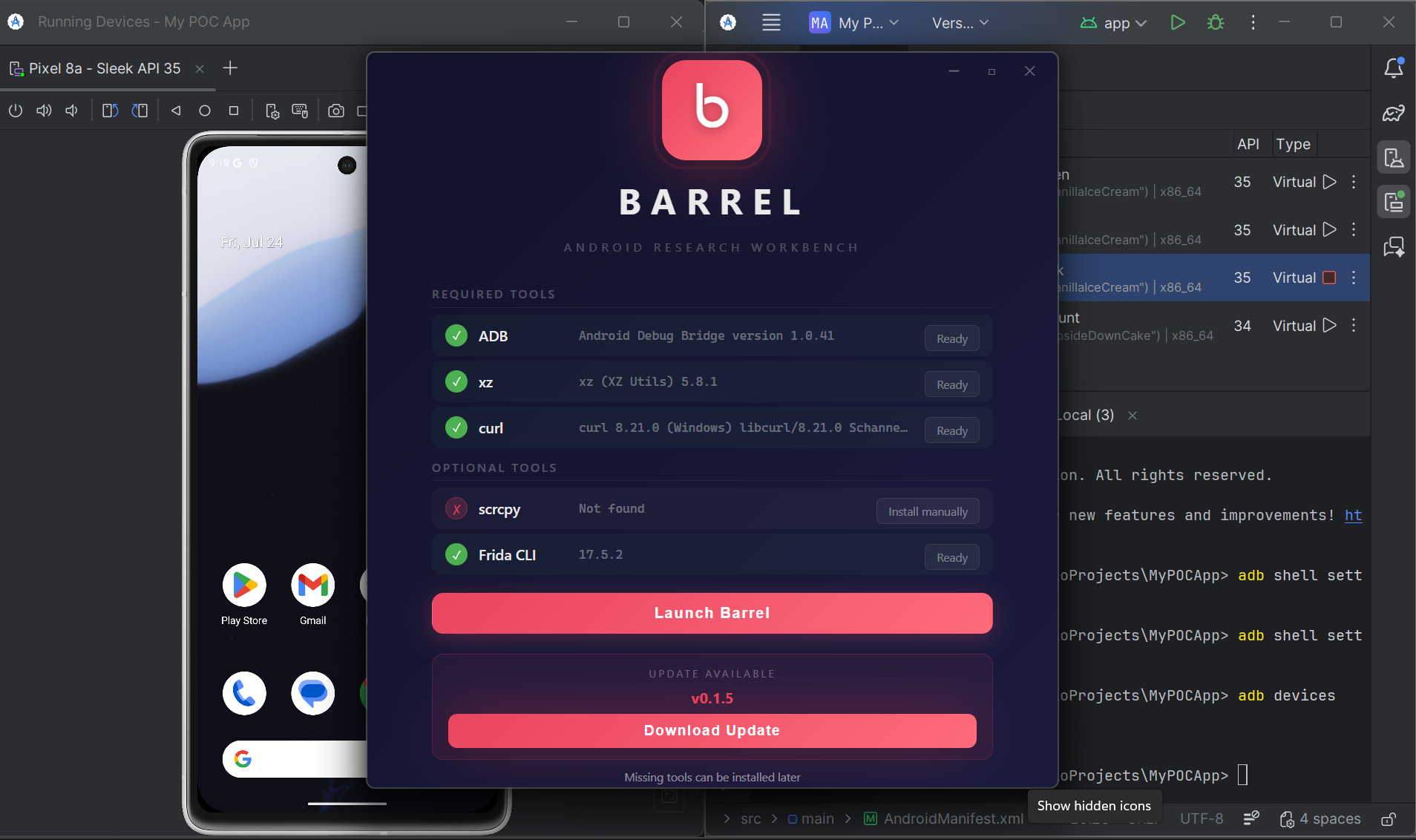
Barrel checks for new releases on every launch and displays the result in the Updates tab - green for up-to-date, pink when a new version is available with release notes and a one-click download button.
Update Channels
- Automatic check - on launch Barrel silently fetches the latest version from GitHub Releases.
- Manual check - click "Check for Updates" in the Updates tab at any time.
- One-click download - detects your platform (Linux deb/rpm/AppImage, macOS dmg, Windows msi) and opens the correct installer.
Plugin SDK
Extend Barrel with your own tools. Plugins add new tabs, run ADB commands, and render custom UI, all with plain JavaScript.
Plugins are how Barrel grows beyond its built-in tools. A plugin is a folder with a manifest.json and a main.js file. Drop it into the Plugins tab, enable it, and it appears as its own sidebar entry under the Plugins group. No compilation, no hosting, no account. The whole SDK runs locally inside Barrel.
Install a plugin
.zip; Barrel extracts and installs it the same way. Either works with the example zips below.
.zip you can hand to anyone.
Build your first plugin
A plugin needs exactly two files. Start a folder named hello-barrel and create these inside it.
manifest.json
Declares who the plugin is and what it can do. Barrel reads this on install.
{
  "id": "hello-barrel",
  "name": "Hello Barrel",
  "version": "1.0.0",
  "author": "Your Name",
  "description": "My first Barrel plugin",
  "entry": "main.js",
  "tab": {
    "label": "Hello Barrel"
  },
  "permissions": ["adb.exec"]
}| Field | Purpose |
|---|---|
id | Unique identifier. Falls back to the folder name if omitted. Used for the install folder, storage namespace, and event prefix. |
name, version, author, description | Shown in the plugin manager list. |
entry | Entry file that runs when the plugin loads. Defaults to main.js. |
tab.label | Sidebar label for the plugin tab. |
permissions | Capabilities the plugin requests. Keep it minimal. See Permissions below. |
icon | Optional emoji or glyph shown next to the tab label. |
private | Optional flag for personal plugins. |
min_barrel_version | Optional minimum Barrel version the plugin needs. |
main.js
This is your plugin code. It runs as a JavaScript module and talks to Barrel through one global object: window.BarrelPlugin. Here is a complete working plugin:
const api = window.BarrelPlugin;

api.registerTab({
  id: "hello",
  label: "Hello Barrel",
  render(container) {
    container.innerHTML = "";

    const heading = document.createElement("p");
    heading.textContent = "Welcome to the Barrel Plugin SDK!";
    container.appendChild(heading);

    const listBtn = api.ui.button({
      label: "List devices",
      variant: "accent",
    });
    container.appendChild(listBtn);

    const output = api.ui.outputPane();
    output.style.marginTop = "10px";
    container.appendChild(output);

    listBtn.addEventListener("click", async () => {
      output._clear();
      output._append("Active device: " + (api.getDevice() || "(none)"));
      try {
        const res = await api.execAdb(["devices", "-l"]);
        output._append(res.stdout);
      } catch (e) {
        output._append("Error: " + e);
      }
    });
  },
});
What just happened:
window.BarrelPluginis the frozen API Barrel gives every plugin. You read it once at the top of your file.registerTabtells Barrel to create a new tab. Therenderfunction receives acontainerelement and fills it with your UI on every activation.api.ui.buttonandapi.ui.outputPanebuild Barrel-styled UI for you, so your plugin looks native.api.execAdbrunsadbon the host and returns the output. Theadb.execpermission you declared makes it available.api.getDevice()returns the device currently selected for your plugin, or an empty string when no device is connected.
Install the folder in the Plugins tab, enable it, and your tab appears under Plugins in the sidebar. Click it, press List devices, and the output streams into the pane.
The BarrelPlugin API
Everything a plugin can reach. All of it is exposed through the single frozen BarrelPlugin global, so there is nothing else to import.
registerTab({ id, label, render })
Create a plugin tab. render(container) is called each time the tab activates and must fill container with the UI. Optional icon, onActivate, and onDeactivate callbacks are supported. Returns an unregister function.
unregisterTab(tabId)
Remove a tab that your plugin registered. Call it on cleanup or when the plugin is disabled.
getDevice()
Return the serial of the device currently targeted at your plugin, or an empty string if none is connected.
onDeviceChange(handler)
Subscribe to device connect/disconnect events. The handler receives the new device state. Returns an unsubscribe function.
execAdb(args, { timeoutMs })
Run an adb command on the host. args is an array such as ["devices", "-l"]. Resolves to { code, stdout, stderr }. Requires the adb.exec permission (safe subset) or adb.exec:full.
on(event, handler)
Listen for events on Barrel's event bus, for example logcat or shell output. Returns an unsubscribe promise.
emit(event, payload)
Broadcast an event from your plugin. Events are namespaced with your plugin id, so emit("data") becomes plugin:<id>:data.
storage.get(key) / set(key, value) / remove(key)
Persistent key-value storage, namespaced to your plugin. Survives restarts. Great for settings and counters.
dialog.openFile(filters)
Open a native file picker and resolve to the selected path. Requires the dialog.open permission.
fs.read(path) / fs.write(path, content)
Read and write local text files. Requires the fs.read and fs.write permissions respectively.
ui.button({ label, variant, onClick })
Return a Barrel-styled button. variant can be "accent", "danger", or the default. Returns a DOM element you append anywhere.
ui.statusPill(text, tone)
Return a small status pill. Tones like "ok" or "err" color it for quick glance feedback.
ui.deviceSelect({ onSelect })
Return a device dropdown that stays in sync with connected devices. Fires onSelect(serial) when the user changes it.
ui.table(headers, rows)
Return a styled table from an array of headers and an array of row arrays. Cell values are inserted as text, so user data cannot inject HTML.
ui.modalGlass({ title, body })
Return a glass confirmation dialog with a Close button. Resolves to a function you call to dismiss it. Handles click-outside and Escape.
ui.outputPane()
Return an auto-scrolling output pane. Use _append(text) and _clear() on the returned element to stream output.
Permissions
Plugins run with the lowest privilege by default. Every capability you list in manifest.json is checked both in the UI and in the Rust backend, so a plugin cannot silently escalate past its manifest. Keep the list as small as your plugin needs.
| Permission | What it grants |
|---|---|
adb.exec | Run adb commands from a safe subset. Blocked commands (su, shell, push, pull, root, install, and more) return a permission error. Enough for device listing and read-only queries. |
adb.exec:full | Run any adb command, including shell, push/pull, and install. Powerful, so treat it like root access for your device. |
dialog.open | Open native file pickers from a plugin. |
fs.read | Read local text files on the machine running Barrel. |
fs.write | Write local text files on the machine running Barrel. |
Share your plugin with the community
Barrel plugins are plain folders, so sharing is simple. Zip the folder, post it to GitHub, or share it in your team. Anyone can install it in seconds from the Plugins tab.
BarrelPlugin.
adb.exec over adb.exec:full. Users check permissions before enabling, and minimal requests build trust.
description and show usage in a README inside the folder. A plugin that explains itself gets installed.
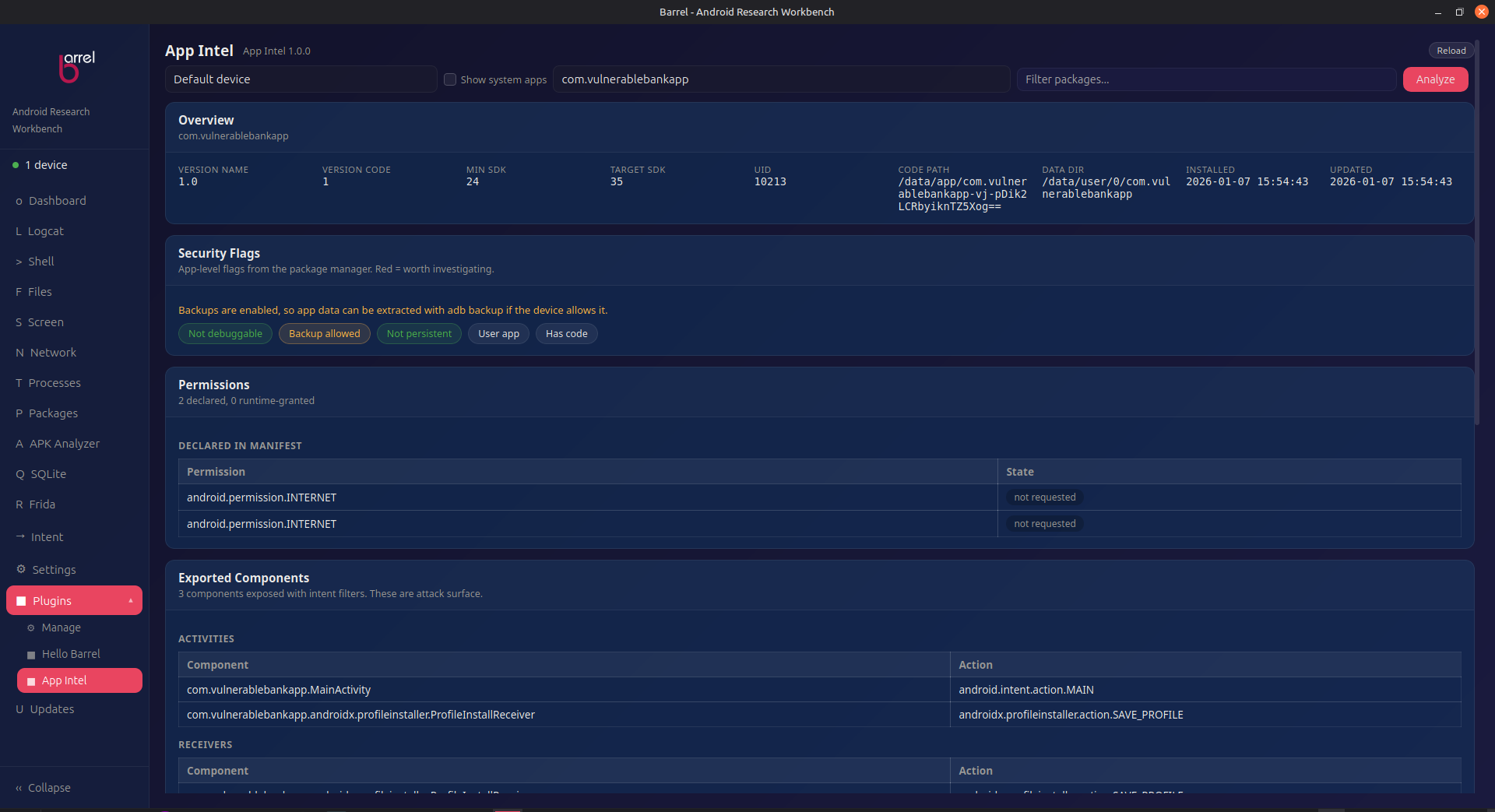
Example plugins are uploaded to the Barrel releases page. Grab a zip, click Install Zip… in Barrel, and you are running it.
| Plugin | What it does | Download |
|---|---|---|
| App Intel | One-click recon for any installed app: permissions, exported components, security flags, and a live app-data explorer. The flagship example. | app-intel-plugin.zip |
| Hello Barrel | The smallest possible starting point: a manifest, a main file, a button, and an ADB call. Grab it and build on top of it. | hello-barrel-plugin.zip |
Keyboard Shortcuts
Global and context-specific shortcuts.
| Shortcut | Context | Action |
|---|---|---|
Ctrl + Tab | Global | Next sidebar tab |
Ctrl + Shift + Tab | Global | Previous sidebar tab |
Ctrl + C / Ctrl + Shift + C | Shell | Copy selection, or SIGINT if no selection |
Ctrl + V / Ctrl + Shift + V | Shell | Paste into terminal |
Ctrl + C | Logcat / any text | Copy selected text |
Tab Shortcuts
| Action | How |
|---|---|
| Switch tabs | Click any tab |
| Close tab | Click the × button |
| Reorder tabs | Drag and drop |
| Rename tab | Double-click the label |
Changelog
What's new in each release.
v0.3.0
September 2026Added
- Plugin SDK — extend Barrel with your own JS plugins. Register sidebar tabs, call ADB commands, render custom UI. Free: 1 plugin. Licensed: unlimited.
- SQLite Browser — browse any app's databases, run raw SQL, export to CSV.
- Frida Script Library — built-in scripts: SSL pinning bypass, anti-root bypass, method logger, native tracer, and more.
- Custom Frida scripts — load your own
.jsscripts from disk. - APK Analyzer — full static analysis: identity card, tech stack detection, risk score, secret scan, DEX string extraction.
- Frida Trace — live frida-trace sessions with spawn/attach, function & module filters, streaming output.
- Right-click context menu on File Explorer — View, Pull, or Send to SQL Browser.
- User-only packages filter in Package Manager.
Fixed
- Crash with too many concurrent operations on Windows.
- Frida
--no-pauseerror on frida ≥17.16. - Frida Script Library output flooded with banner noise.
- Stale device targeting after unplug.
- Logcat package filter missing long package names.
v0.1.8
August 2026Added
- Wireless ADB disconnect button.
- Test-only APK install toggle.
Fixed
- Shell terminal history preserved across connect/disconnect.
- Docs site horizontal overflow on mobile.
v0.1.0
July 2026Added
- Initial release: Logcat, Shell, File Explorer, Package Manager, Process Explorer, Network Inspector.
- Frida integration, screen capture/recording/mirroring, multi-device support.
- In-app updates, dark/light theme, session save/load, custom commands.
Troubleshooting
Common issues and solutions.
"No devices detected"
- Ensure USB debugging is enabled on your Android device.
- Run
adb devicesin a terminal to verify the device is listed. - If the device shows as "unauthorized", accept the RSA fingerprint prompt on the device.
- Click Refresh on the Dashboard after connecting.
Shell: "Terminal not ready"
- The first tab's shell session may still be initializing. Wait a moment and try again.
- Check the browser/console for errors (Ctrl+Shift+I in dev mode).
Shell: Connect fails
- Ensure a device is selected on the Dashboard.
- Verify the device is still connected (
adb devices). - The Connect button only works when the toolbar shows
LOCALmode.
Logcat: Shows old messages / No output
- Old messages are normal -
adb logcatdumps the kernel buffer first. Click Stop, Clear, then Start to begin fresh. - Ensure a device is selected and click Start (does not auto-start).
- Verify
adb logcatworks from a terminal.
File Explorer: Permission denied
- System directories require root - Barrel auto-attempts
sufallback. - Unrooted devices may not access directories like
/data/data.
macOS: "Barrel cannot be opened because the developer cannot be verified"
- This is expected - Barrel is not notarized by Apple. Use one of these workarounds:
- Right-click Barrel.app in Applications → Open → click Open in the dialog (one-time).
- Or run:
xattr -d com.apple.quarantine /Applications/Barrel.app
Windows: SmartScreen / Windows Defender warning
- This is expected - Barrel is not code-signed with a Microsoft certificate.
- Click More info then Run anyway to launch the installer or app.
- You can verify the download authenticity using the signature verification steps.
App freezes on splash screen (logo visible, nothing happens)
- Run
frida --versionin a terminal. If it hangs, you have a brokenfridabinary. Barrel checks tool versions on startup - a hanging binary blocks the whole app. Remove or fix the brokenfridain your PATH. - Certain GPU/driver combinations can cause WebKit's hardware compositing to hang. Launch with software rendering:
    WEBKIT_DISABLE_COMPOSITING_MODE=1 ./Barrel_0.3.0_amd64.AppImage

# Or for the installed version:
WEBKIT_DISABLE_COMPOSITING_MODE=1 barrel- To make this permanent, add to your
~/.bashrc:
alias barrel='WEBKIT_DISABLE_COMPOSITING_MODE=1 barrel'FAQ
/data/data, but Barrel falls back gracefully when root isn't available.adb.exe is in your PATH. Everything else is optional - Frida, scrcpy, curl, and xz are detected automatically if installed.frida --version in a terminal. If it hangs, your frida binary is broken (common with pipx). Replace it with a standalone Python script or reinstall with pip install --force-reinstall frida-tools.Testimonials
Used by penetration testers and security researchers who need a fast, focused Android toolkit.
"I was jumping between three different tools to do what Barrel does in one window. Logcat with highlight rules alone saves me an hour a week."
- Mobile security researcher, red team operator
"The Frida integration is what sold me. No more manually downloading frida-server, pushing it, and remembering to chmod. One click and it's running."
- Pentester, freelance Android security auditor
"I keep a USB hub with 4 test devices on my desk. Barrel's per-tab device selector means I can run logcat on all of them without fighting with ADB serials."
- Android app security reviewer, financial sector
Licensing
Barrel is free to use. Paid licenses are coming for advanced features.
Free
$0
- All current tools - logcat, shell, files, packages, screen, Frida, network, processes, intent sender
- Multi-device support
- Session save/load
- In-app updates
- Plugin SDK with 1 plugin
Pro
Coming
- Remote device access
- Advanced traffic analysis
- Unlimited plugins
- Premium script library
- Priority support
Feedback & Support
Found a bug? Have a feature request? Something isn't working?
Verify Your Download
Ensure your build is authentic and untampered.
.sig file matching your installer.
minisign (Ed25519) key. The key and signature files are base64-encoded, so decode them first, then verify. On Linux/macOS:
base64 -d barrel-public.key > barrel.pub
base64 -d Barrel_0.3.0_amd64.deb.sig > Barrel_0.3.0_amd64.deb.sig.raw
minisign -Vm Barrel_0.3.0_amd64.deb \
  -p barrel.pub -x Barrel_0.3.0_amd64.deb.sig.raw
Install minisign first: sudo apt install minisign (Debian/Ubuntu),
brew install minisign (macOS), or choco install minisign (Windows).
On Windows use certutil -decode instead of base64 -d.
Replace Barrel_0.3.0_amd64.deb with your actual installer and signature file.
A valid signature confirms the file was built by the Barrel team and has not been tampered with.
Every release is cryptographically verified against this public key before publishing.